Let it work overnight.
An automation is a saved prompt with a folder, an engine and a schedule. At the time you set, Turret opens a fresh session and sends the prompt. The run is kept, so you read what it did in the morning.
- Developers
- Everyday work
- Automations
- Worktrees
How it goes
- Step 1
Open Automations from the foot of the sidebar and press New job.
Step 2Name it and write the prompt: "Read the open issues. Label each one, close the ones that are already fixed, and write a summary to
triage.md."Step 3Pick the folder, the mode and the engine.
Step 4Choose Daily and a time. Tick the worktree box if each run should work on its own branch.
Step 5Press Create. The job shows when it next runs.
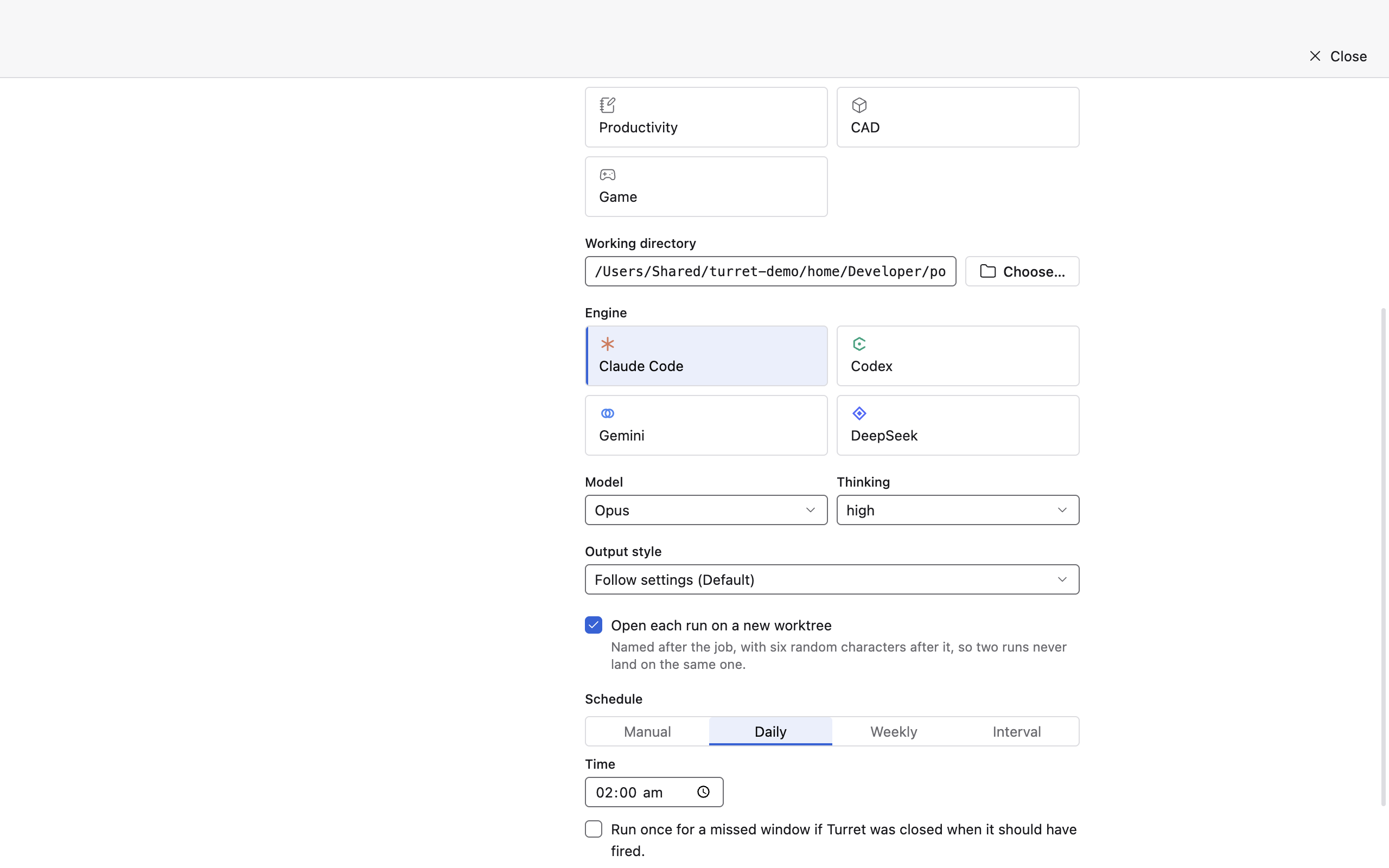
Steps 1 to 5: the new-job editor, filled in. - Step 6
In the morning, open the job. Each run is listed with when it started and how it ended. Open a run to read its session.
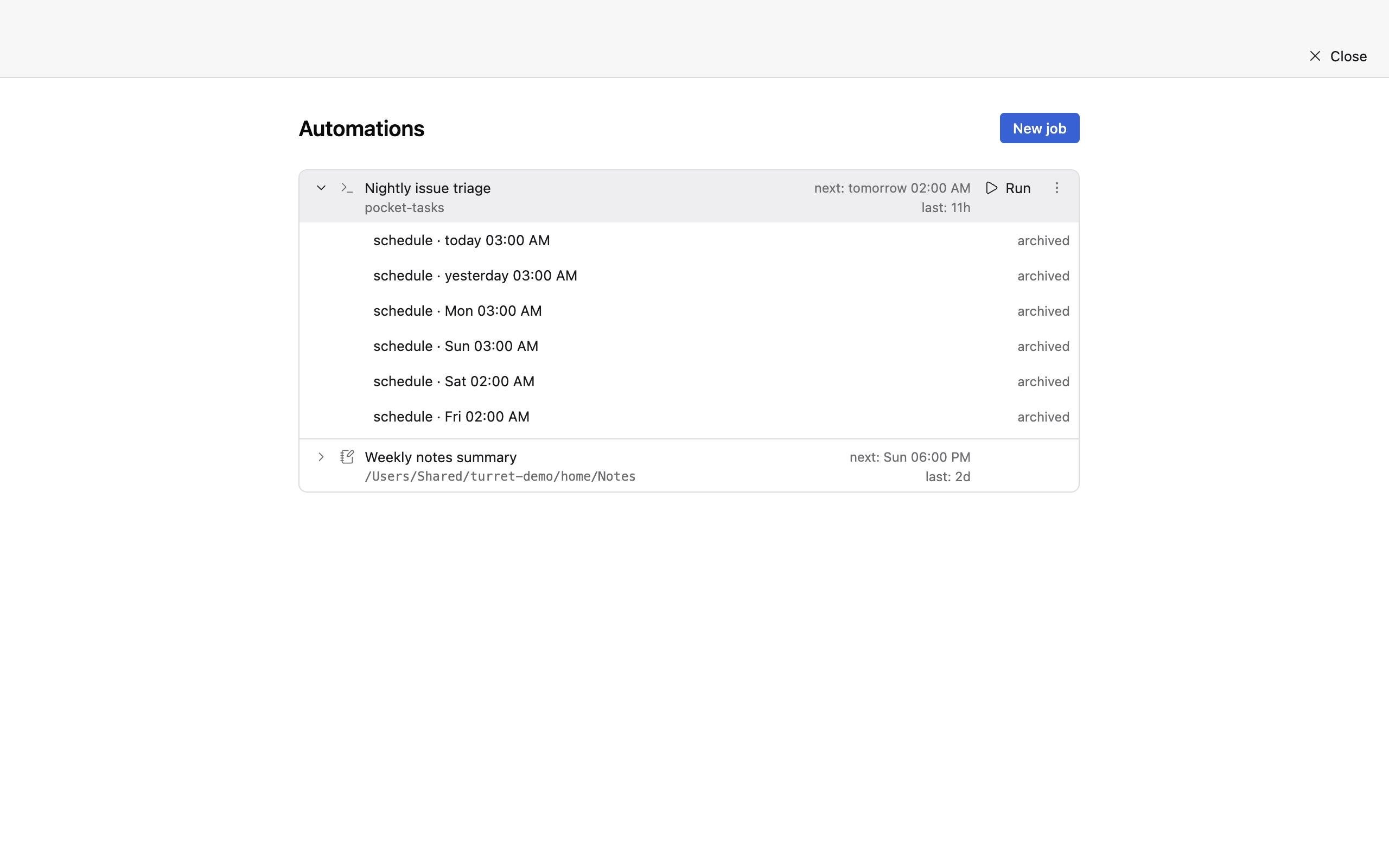
The run history. 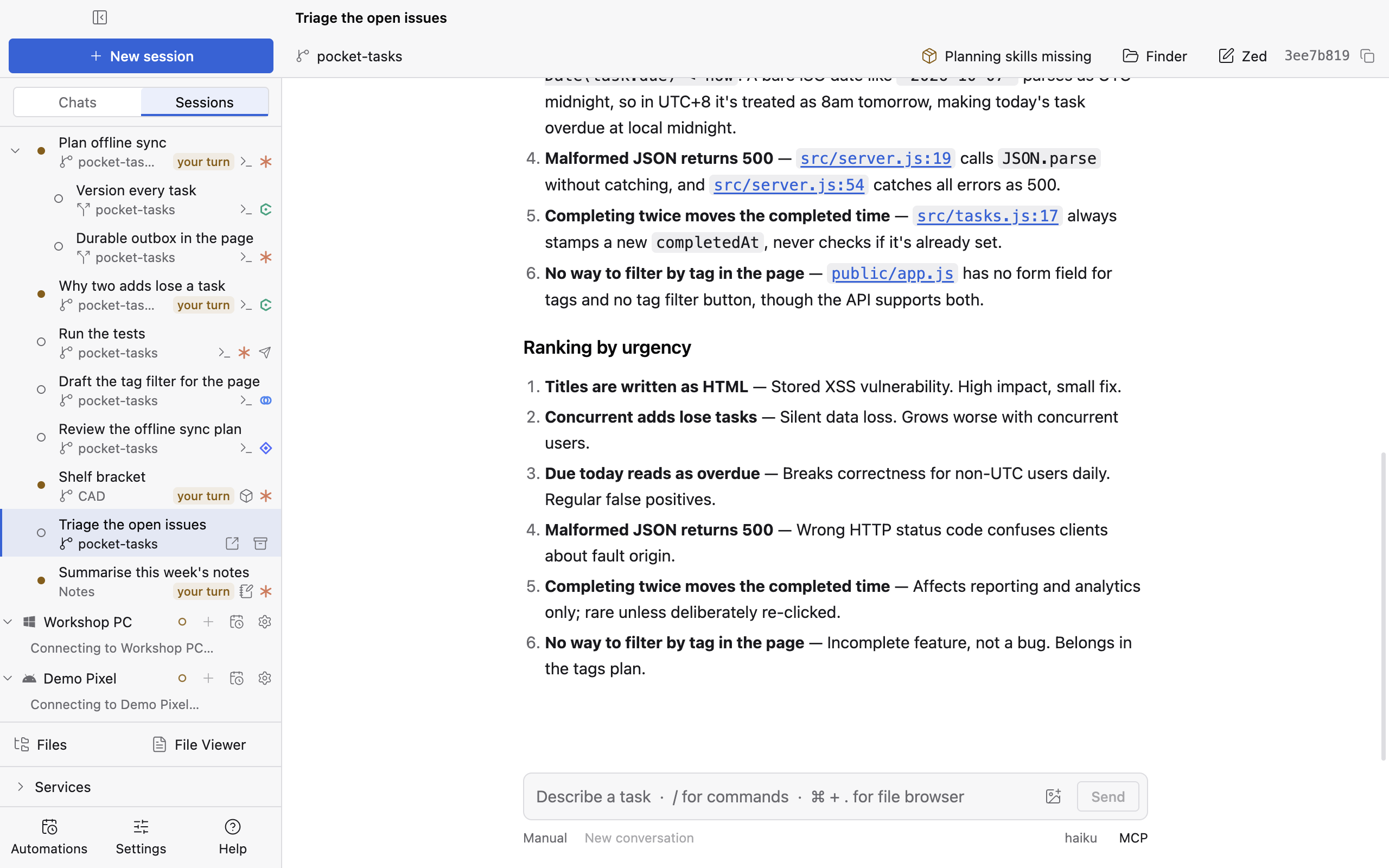
A run's session, with the triage it did.


Turret has to be running for a schedule to fire. If it was closed at the time, a missed run can catch up once when Turret opens.
A session can also message you on Telegram when it finishes, with the summary or a file.
The same thing for notes
A weekly job over a folder of notes: "Tidy this week's notes into summaries/ and link each summary to the notes it came from." It runs every Sunday evening in a Productivity session.
More use cases
Steer from Telegram or Slack
Approve a permission request from Telegram, and start a session from a Slack message.
A folder as a workspace
A Productivity session over a folder of notes, with a runbook for the week and notes that link to each other.
Design a part
Describe a bracket, build it, draw on a face, and change it.