Tutorials
Your first session
Open Turret, start a session on a sample folder, answer a permission request and read the reply.
By the end, you will have started a session on a sample folder Turret makes for you. You will have answered a permission request and read what the session did. It takes about five minutes.
What you need
- A Mac, Windows or Linux computer with Turret installed
- A working engine, set up with Set up Claude Code or Codex if Turret opens on Set up an engine
Steps
-
Open Turret. A new install opens on Choose a base folder. Press Continue to keep the folder it suggests.
-
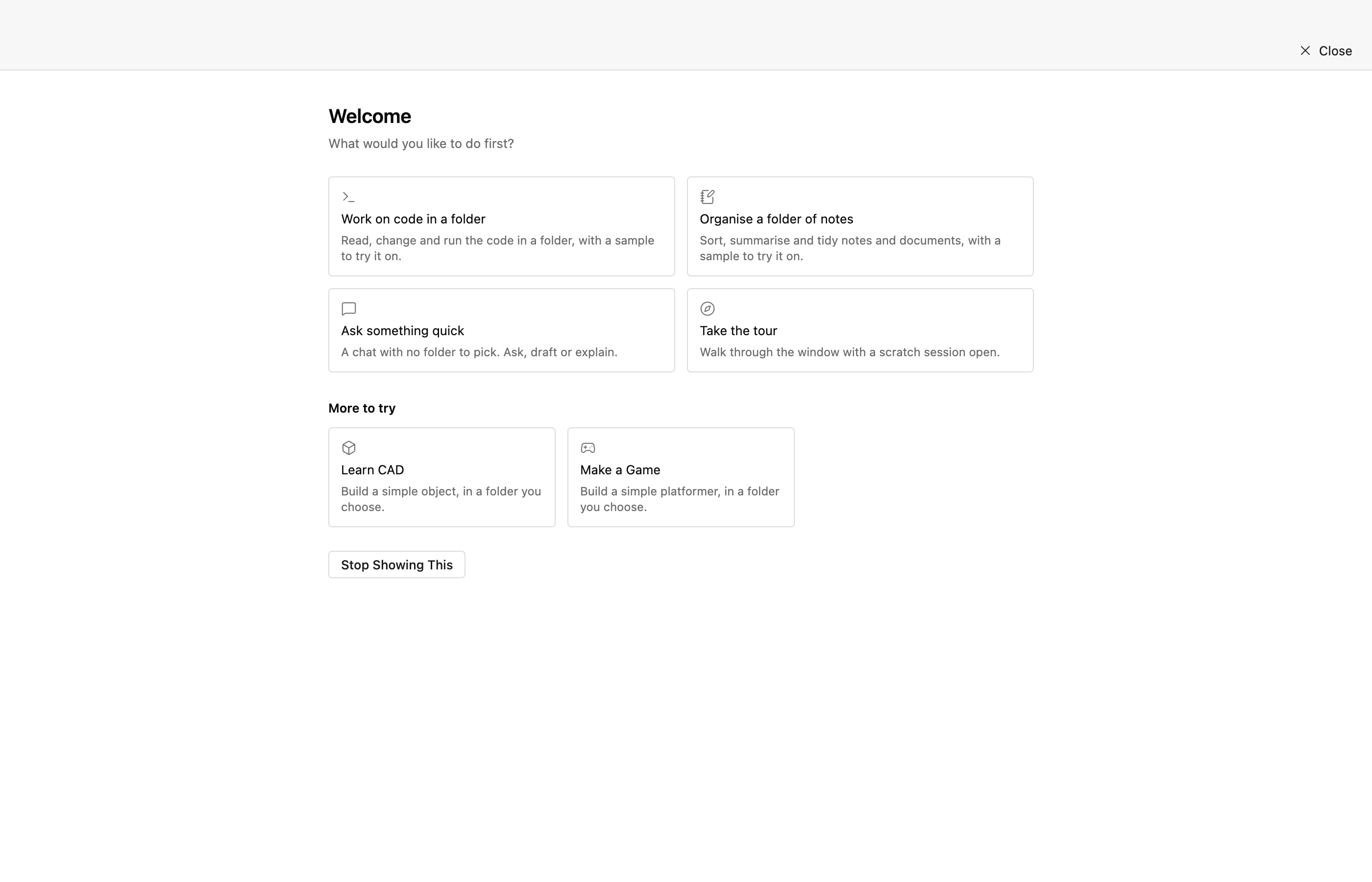
The Welcome screen opens. Press Work on code in a folder.
-
The next screen offers Make me a sample folder and Use a folder of mine. Leave Make me a sample folder chosen. The screen lists the files Turret will make in a
Turret samplesfolder in your home folder.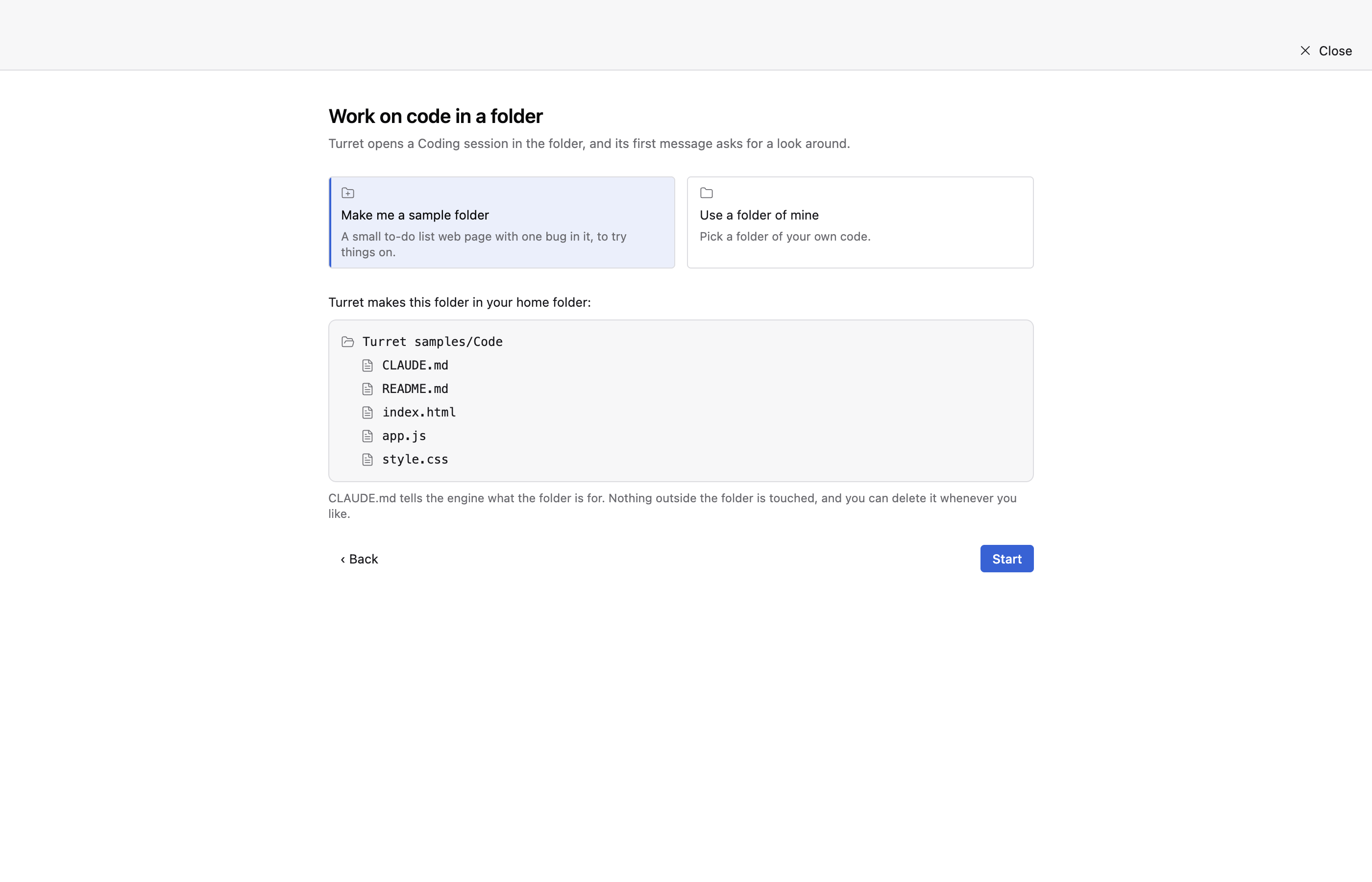
-
Press Start. Turret makes the folder and opens a Coding session on it. The session sends its own first message. The message asks for a look around the project and a fix for the bug in its to-do list.
-
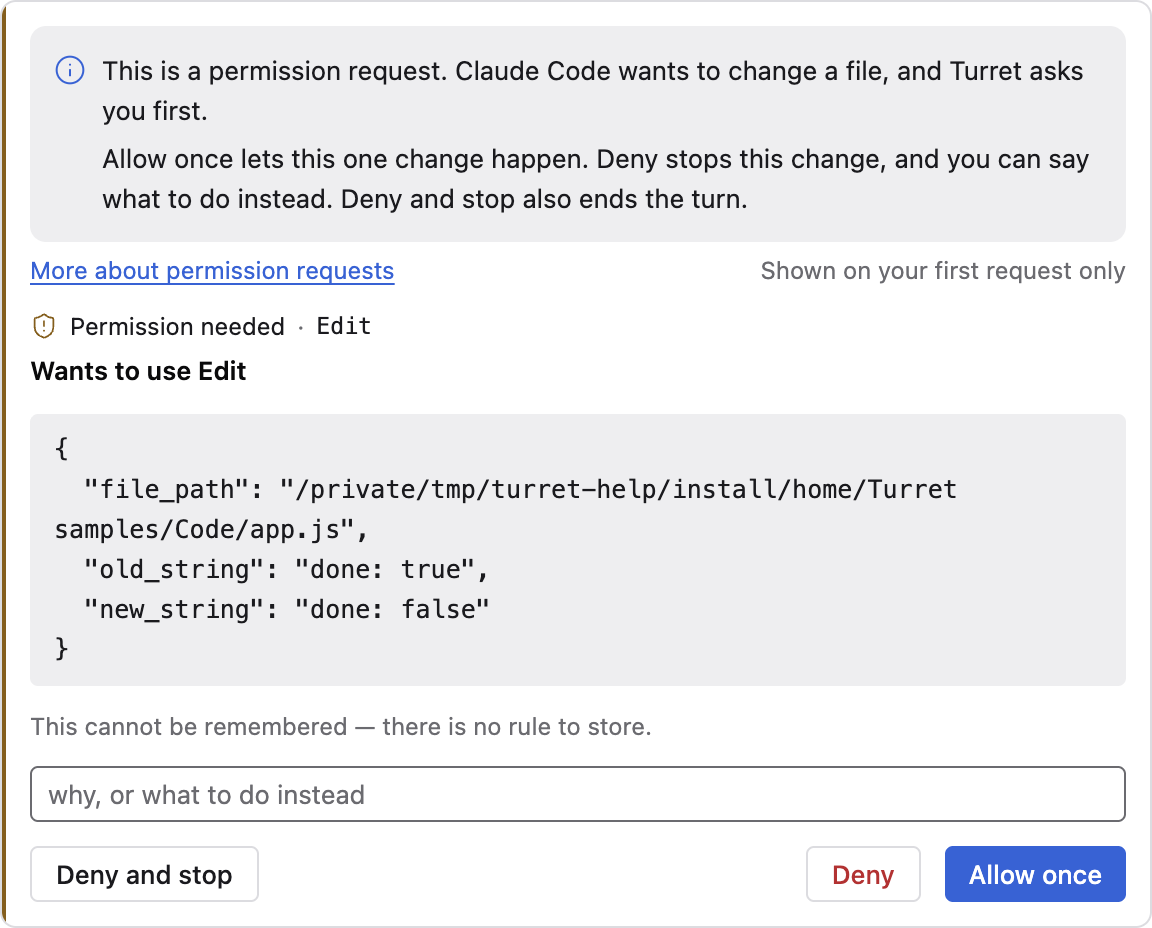
Wait for a card reading Permission needed at the foot of the transcript. It names the tool, Edit, and the file it wants to change. A note above it explains what a permission request is.
-
Press Allow once. The card closes and the note does not appear again. The session edits
app.js, and its reply says what was wrong.
The sample folder stays in your home folder after the session. Open its index.html in a browser to
see the to-do list the session fixed.
Next
- Answer a permission request for the other ways to answer a request, and what Allow always stores.
- Start a session on a folder for the New Session screen's fields: engine, model, worktree and output style.
- Welcome screen for the tour and the other cards.
- Modes for what Coding mode offers, and the others.